Meta Description: Discover the differences between SSD and HDD storage, including speed, price, durability, capacity, and performance. Learn which storage device is best for your computer in 2026.
Suggested URL Slug: ssd-vs-hdd
Primary Keyword: SSD vs HDD
Secondary Keywords: SSD vs HDD comparison, Solid State Drive, Hard Disk Drive, SSD or HDD which is better, SSD benefits, HDD storage capacity, computer storage devices
Introduction
Choosing the right storage device is an important decision when buying a new computer, upgrading an old laptop, or building a desktop PC. Storage affects how quickly your computer starts, how fast applications load, how much data you can save, and how much money you spend.
Two of the most common storage devices are Solid-State Drives (SSDs) and Hard Disk Drives (HDDs). Both store operating systems, applications, documents, photographs, videos, and other files, but they use different technologies.
An SSD uses flash memory to store data electronically, while an HDD relies on rotating magnetic disks and mechanical components. These differences affect speed, noise, durability, capacity, and cost.
So, which option should you choose in 2026? Is an SSD always better than an HDD, or does a traditional hard drive still have a place in modern computing?
In this guide, we will compare SSDs and HDDs in detail and help you choose the right storage solution for your needs and budget.
What Is an SSD?
An SSD, or Solid-State Drive, is a storage device that saves data using flash memory. Unlike traditional hard drives, SSDs do not contain spinning disks or moving read/write heads.
Because they access data electronically, SSDs generally provide much faster response times than HDDs. This makes them particularly useful for operating systems, applications, games, and frequently accessed files.
How Does an SSD Work?
An SSD stores information in NAND flash memory cells. A controller manages data storage, retrieval, error correction, and other operations.
When you open a file or launch an application, the SSD retrieves the required information without waiting for a mechanical disk to rotate or a read/write head to move into position.
This electronic operation reduces access latency and improves responsiveness.
Types of SSDs
Several SSD formats and interfaces are available.
1. SATA SSD
SATA SSDs use the SATA interface, which was also widely used by traditional HDDs. They offer a substantial improvement over HDD performance and are useful for upgrading many older computers.
2. M.2 SATA SSD
An M.2 SATA SSD uses the compact M.2 physical format but communicates through the SATA interface. Its performance is broadly similar to that of other SATA SSDs.
3. NVMe SSD
NVMe SSDs use the NVMe protocol, typically over a PCIe connection. They can deliver substantially higher transfer speeds and lower latency than SATA SSDs, depending on the drive and system.
4. External SSD
External SSDs connect through interfaces such as USB or Thunderbolt. They are useful for portable backups, transferring large files, and expanding storage without opening a computer.
Important: M.2 describes a physical form factor, not a guarantee of NVMe performance. Before buying an SSD, check whether your computer supports SATA, NVMe, or both.
What Is an HDD?
An HDD, or Hard Disk Drive, is a storage device that records data magnetically on rotating platters.
HDDs have been used in desktop computers, laptops, servers, and external storage devices for decades. They remain useful for storing large amounts of data at a relatively low cost per gigabyte.
How Does an HDD Work?
An HDD contains magnetic platters that spin at a specified speed. A mechanical read/write head moves across the platters to retrieve or record information.
Because the drive relies on moving parts, accessing data requires mechanical movement. This makes HDDs slower than SSDs for many everyday operations, especially when accessing numerous small files.
Common HDD Types
1. Desktop HDD
Desktop HDDs are commonly available in the 3.5-inch form factor. They are often used for large storage capacities in desktop PCs and home storage systems.
2. Laptop HDD
Traditional laptop HDDs commonly use the 2.5-inch form factor. They are thinner and smaller than many desktop drives, although SSDs have replaced them in many modern laptops.
3. External HDD
External HDDs connect through interfaces such as USB. They are popular for backups, media collections, photographs, and large files.
4. Enterprise HDD
Enterprise HDDs are designed for suitable server and data-storage environments. Their capabilities vary by model and may include features intended for sustained workloads and specific reliability requirements.
SSD vs. HDD: Key Differences
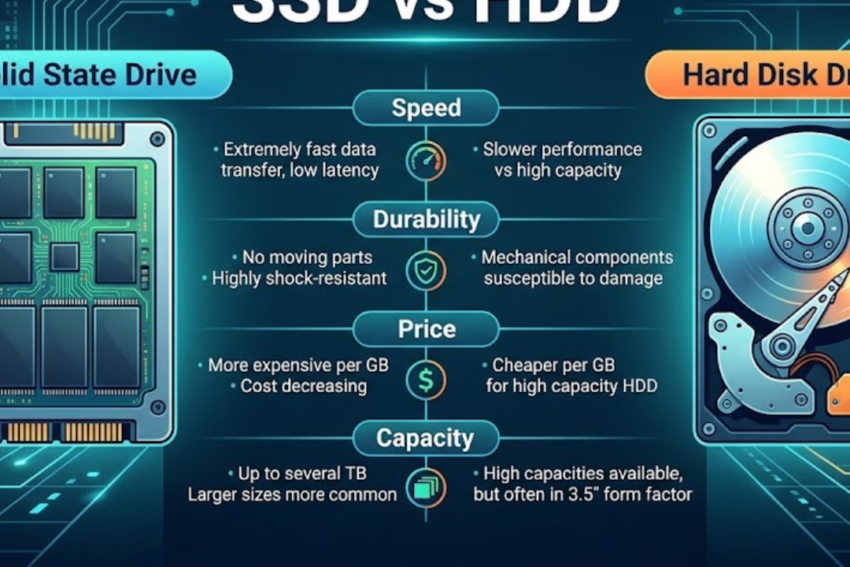
The biggest difference between an SSD and an HDD is how each device stores and accesses data. This affects several important characteristics.
| Feature | SSD | HDD |
|---|---|---|
| Technology | Flash memory | Magnetic platters |
| Speed | Generally much faster | Generally slower |
| Access latency | Very low | Higher due to mechanical movement |
| Noise | Silent | May produce mechanical noise |
| Shock resistance | Generally better during operation | More vulnerable to physical shock while operating |
| Power consumption | Often lower, depending on workload | Often higher due to moving parts |
| Cost per GB | Usually higher | Usually lower |
| Capacity options | Broad range, including high-capacity drives | Large capacities commonly available |
| Best use | Operating systems, applications, active files | Bulk storage, archives, and selected backup uses |
Neither technology is perfect for every situation. Your choice should depend on performance needs, capacity, budget, and how the data will be used.
1. Speed: Which Is Faster, SSD or HDD?
Speed is one of the most significant advantages of SSD technology.
An SSD can access data much more quickly because it does not need to wait for a disk platter to rotate or a mechanical head to move. This is especially important when an operating system or application needs to access many small files.
SSD Performance
SSDs generally provide:
- Faster operating system startup.
- Quicker application launches.
- More responsive multitasking.
- Faster loading in many games.
- Improved performance when working with many small files.
- Reduced waiting during file operations, depending on the workload.
NVMe SSDs can also offer very high sequential transfer speeds, although actual performance depends on the drive, PCIe generation, workload, and computer.
HDD Performance
HDDs can deliver useful sequential transfer speeds, particularly for large files. However, their mechanical design limits random-access performance.
Opening an application, starting a computer, or searching through many small files may take longer on an HDD than on an SSD.
Which Is Better for Everyday Use?
For most modern computers, an SSD provides a noticeable improvement in responsiveness. If you are upgrading an older laptop that still uses an HDD, replacing it with a compatible SSD can be one of the most effective ways to improve everyday performance.
However, an SSD will not automatically fix every performance problem. Insufficient RAM, overheating, outdated software, or a slow processor can still limit the system.
2. Price: Which Storage Device Is More Affordable?
Price is another important difference between SSDs and HDDs.
HDDs generally provide more storage capacity for the money, making them attractive for people who need to keep large quantities of data.
SSDs typically cost more per gigabyte, although prices vary according to capacity, technology, brand, performance, and market conditions.
When an HDD Makes Financial Sense
An HDD may be a practical option if you need to store:
- Large video collections.
- Archived photographs.
- Old documents and project files.
- Backups of multiple computers.
- Large media libraries.
- Data that does not need to be accessed frequently.
When an SSD Is Worth the Extra Cost
An SSD is often worth the additional expense when it stores your operating system, commonly used programs, and active projects.
Faster access can save time every day and make a computer feel more responsive.
Rather than comparing purchase price alone, consider the balance between performance and capacity.
3. Durability and Reliability
Durability is another area where SSDs and HDDs differ.
SSDs have no moving mechanical parts, so they are generally more resistant to physical shock and vibration during operation. This makes them attractive for laptops and portable computers.
HDDs contain moving parts that can be damaged by physical impact, especially while the drive is operating.
However, it would be incorrect to assume that every SSD lasts longer than every HDD. Both technologies can fail, and reliability depends on the particular device, usage conditions, manufacturing quality, age, and other factors.
SSD Lifespan
SSDs have a finite amount of write endurance. Manufacturers may specify endurance ratings using Terabytes Written (TBW) or related measures.
For ordinary home and office use, a suitable modern SSD can provide many years of service. Heavy write-intensive workloads may place greater demands on the drive.
HDD Lifespan
HDDs are affected by mechanical wear, operating temperature, vibration, and other factors. Some drives operate reliably for many years, while others fail earlier.
Neither technology offers a guarantee against sudden failure.
Important tip: Always maintain backups of important files. A reliable storage device is not a replacement for a backup strategy.
4. Power Consumption and Battery Life
Power consumption matters most for laptops, portable systems, and energy-conscious computing environments.
SSDs often consume less power than HDDs in many typical workloads because they do not need to spin platters or move mechanical heads. However, power consumption varies by model and activity.
An HDD consumes power to keep its platters rotating, and its power requirements may differ between idle and active operation.
Does an SSD Improve Laptop Battery Life?
Replacing an HDD with an SSD may reduce storage-related power consumption and improve responsiveness. However, the total effect on battery life depends on the complete laptop.
The display, processor, graphics hardware, wireless connectivity, and battery condition can have a much greater influence on overall power usage.
An SSD upgrade should therefore be viewed as a potential improvement, not a guarantee of a particular increase in battery life.
5. Storage Capacity: Which Holds More Data?
Both SSDs and HDDs are available in a range of capacities, from relatively small drives to multi-terabyte devices.
However, HDDs often offer a lower cost per gigabyte at high capacities, making them popular for large media libraries and bulk storage.
SSDs are widely used for operating systems and applications because their speed benefits everyday computing.
Choosing the Right Capacity
Your required storage capacity depends on the types of files you keep.
- 256 GB: May suit basic users with limited local storage needs.
- 512 GB: A practical starting point for many general-purpose computers.
- 1 TB: Useful for larger application collections, games, and personal files.
- 2 TB or more: Worth considering for extensive media libraries, creative projects, or large game collections.
These are general guidelines. Operating system requirements, installed applications, and the size of your personal files can change the amount of storage you need.
If you regularly work with high-resolution video, large datasets, or numerous games, you may need considerably more capacity.
6. Gaming: SSD vs. HDD
Storage can influence the gaming experience, particularly loading times and how quickly game assets become available.
An SSD generally reduces loading times in games compared with an HDD. Modern games can also benefit from fast storage when loading large environments or assets.
However, an SSD does not automatically increase frame rates. Gaming performance depends primarily on the GPU, CPU, memory, game engine, and graphics settings.
Is an NVMe SSD Necessary for Gaming?
An NVMe SSD can provide high transfer speeds, but the difference between a good SATA SSD and an NVMe SSD may be less noticeable in some games than the difference between an HDD and an SSD.
The best option depends on your system, the games you play, and your budget.
For a new gaming computer, an SSD is generally the preferred choice for installing the operating system and frequently played games. An additional HDD can be useful for storing less frequently played games and large media collections.
7. Video Editing and Professional Work
People who edit videos, work with large photographs, develop software, or process scientific datasets often benefit from fast storage.
SSDs can improve file access, project loading, and the handling of many small files. NVMe drives can be especially useful for workloads that make effective use of their higher transfer rates.
Nevertheless, professional performance depends on more than storage speed.
Video editing may also depend on processor performance, GPU acceleration, RAM capacity, codec support, and the size of the working project.
HDDs remain useful for archiving completed projects and maintaining large media libraries when the lowest cost per unit of storage is important.
A practical professional setup may therefore use an SSD for active work and HDDs for secondary storage or archival purposes.
8. Can You Use an SSD and HDD Together?
Yes. Using both types of storage in the same computer is a common and practical approach.
This setup combines SSD responsiveness with the relatively low cost per gigabyte of HDD storage.
For example:
- Install the operating system on an SSD.
- Keep frequently used applications on the SSD.
- Install demanding games on the SSD.
- Store large videos and photographs on an HDD.
- Use a separate drive or storage system for backups.
This arrangement can deliver a good balance between performance and storage capacity.
Before purchasing additional drives, check the computer’s available drive bays, M.2 slots, supported interfaces, and power and data connections.
9. How to Upgrade From an HDD to an SSD
Replacing a traditional HDD with an SSD can be an effective upgrade for a compatible computer.
Before starting, confirm the computer’s storage interface, supported drive dimensions, and available capacity.
Step 1: Check Compatibility
Determine whether your computer supports a SATA SSD, an NVMe SSD, or another storage format. For laptops, consult the manufacturer’s specifications or service manual.
Step 2: Back Up Your Data
Copy important documents, photographs, and other files to a separate storage device or reliable backup service.
Do not rely on the original HDD as your only copy of important information.
Step 3: Choose an Appropriate SSD
Select a compatible drive with sufficient capacity. Consider warranty coverage, endurance specifications, and performance appropriate for your workload.
Step 4: Transfer Your Data
Depending on your system, you may clone the existing drive to the SSD or perform a fresh operating system installation.
Cloning can save time, but it requires adequate destination capacity and compatible software. A fresh installation can help remove unnecessary software and provide a clean setup.
Step 5: Install the SSD
Follow the manufacturer’s instructions for installation. Disconnect power before working inside the computer, and take appropriate precautions against electrostatic discharge.
If you are unfamiliar with hardware installation, consider asking a qualified technician for help.
Step 6: Verify the System
After installation, confirm that the computer detects the SSD, boots correctly, and can access your files and applications.
Keep your backup until you are confident that the new setup is working properly.
10. Common Myths About SSDs and HDDs
Several misconceptions can make choosing a storage device confusing.
Myth 1: SSDs Never Fail
SSDs can fail because of electronic faults, controller problems, firmware issues, wear, or other causes. No storage technology is completely failure-proof.
Myth 2: HDDs Are Obsolete
HDDs remain useful for bulk storage, backups, and archives. Their lower cost per gigabyte can make them attractive when capacity matters more than fast random access.
Myth 3: NVMe Is Always Much Faster in Every Task
NVMe SSDs can offer much higher transfer speeds than SATA SSDs, but not every task benefits equally. Everyday applications may be limited by other parts of the system.
Myth 4: More Storage Automatically Makes a Computer Faster
Increasing storage capacity does not necessarily improve speed. Performance depends on storage technology, available space, hardware specifications, and workload.
Myth 5: An SSD Eliminates the Need for Backups
SSDs improve performance, but they do not protect files against accidental deletion, theft, malware, or hardware failure. Backups remain essential.
11. Which Storage Device Should You Choose in 2026?
The right choice depends on how you use your computer.
Choose an SSD if:
- You want faster startup and application loading.
- You use your computer for everyday productivity.
- You play modern games.
- You work with active creative projects.
- You need compact, shock-resistant storage for a laptop.
- You want to upgrade an older computer that uses an HDD.
Choose an HDD if:
- You need large storage capacity at a lower cost per gigabyte.
- You maintain extensive media collections.
- You store files that are accessed infrequently.
- You need additional storage alongside an SSD.
- Your workload prioritizes capacity over fast random access.
Choose both if:
- You want a responsive computer and substantial storage capacity.
- You work with large media libraries.
- You need fast storage for applications and economical storage for archives.
- Your desktop computer supports multiple drives.
For most new general-purpose computers, an SSD is the best starting point for primary storage. HDDs remain a useful option for additional capacity.
Conclusion
SSDs and HDDs both play important roles in computer storage, but they are designed around different priorities.
SSDs offer fast access to data, quiet operation, and strong resistance to operating shock. HDDs offer economical high-capacity storage and remain useful for archives and large collections of files.
For most users in 2026, an SSD is the better choice for the operating system and everyday applications. If you need additional capacity without spending as much per gigabyte, combining an SSD with an HDD can be an effective solution.
Before purchasing a drive, consider your budget, capacity requirements, computer compatibility, workload, and backup needs. Choosing the right storage device will help you build a computer that balances speed, capacity, and value.
Frequently Asked Questions (FAQs)
1. Is an SSD better than an HDD?
An SSD is generally better for operating system performance, application loading, and fast access to data. An HDD is often more economical for storing large quantities of files.
2. Can an SSD make an old computer faster?
Yes, replacing an HDD with a compatible SSD can noticeably improve startup times, application loading, and general responsiveness. The improvement depends on the computer’s other components and existing condition.
3. How long does an SSD last?
SSD lifespan varies by model, workload, write endurance, and operating conditions. Many modern SSDs can operate for years, but sudden failure remains possible.
4. Are HDDs good for gaming?
HDDs can store and run many games, but loading times may be longer than with an SSD. For most new gaming systems, an SSD is preferable for frequently played games.
5. Can I install Windows on an external SSD?
It is possible in certain configurations, but booting and running Windows from an external drive depends on the hardware, operating system edition, and supported setup. External SSDs are more commonly used for file storage and backups.
6. Is a 512 GB SSD enough?
A 512 GB SSD is sufficient for many everyday users, but gamers and professionals with large files may need 1 TB or more.
7. Does an SSD use less electricity than an HDD?
SSDs often use less power in many typical workloads, but actual consumption depends on the drive model and activity.
8. Should I buy a SATA SSD or an NVMe SSD?
Choose a drive compatible with your computer. NVMe drives can provide higher transfer speeds, while SATA SSDs are useful for many older systems and often provide a major improvement over HDDs.
9. Is an HDD suitable for backups?
Yes, HDDs are commonly used for backups because they offer high capacity at a relatively low cost. Important files should ideally have multiple backup copies, including one stored separately from the computer.
10. What is the best storage setup for a home computer?
For most home computers, an SSD for the operating system and applications is a good starting point. Add an HDD if you need substantial capacity for videos, photographs, or other large files.