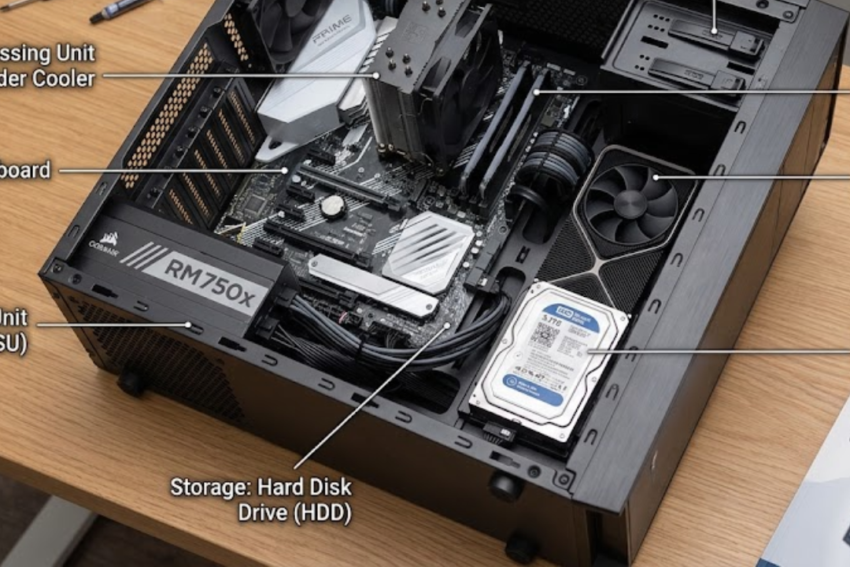
Meta Description: Learn what computer hardware is, discover essential computer components, and understand how the CPU, RAM, motherboard, storage, and other parts work together.
Suggested URL Slug: computer-hardware-beginners-guide
Primary Keyword: Computer hardware
Secondary Keywords: Computer components, types of computer hardware, CPU, RAM, motherboard, SSD vs HDD, computer hardware guide
Introduction
Computers have become an essential part of modern life. From working in offices and studying online to gaming, programming, and running businesses, computers help people complete countless tasks every day. However, have you ever wondered what makes a computer work?
The answer lies in its hardware and software. Software provides instructions, while hardware consists of the physical components that allow a computer to process information, store data, and perform different operations.
Understanding computer hardware is useful for beginners, students, professionals, and anyone planning to purchase a new computer. It helps you compare specifications, troubleshoot common problems, and choose the right machine for your needs.
In this complete beginner’s guide, we will explain the essential computer hardware components, their functions, and how they work together to create a functioning computer.
What Is Computer Hardware?
Computer hardware refers to all the physical parts of a computer system that you can see and touch. These components work together to receive input, process information, store data, and produce output.
Examples of computer hardware include the processor, motherboard, RAM, storage drive, keyboard, mouse, monitor, and power supply.
Computer hardware is generally divided into several categories:
- Processing hardware: Components that execute instructions and process data.
- Memory hardware: Components that temporarily hold information needed by the processor.
- Storage hardware: Devices that retain files, programs, and operating system data.
- Input hardware: Devices used to enter data and instructions.
- Output hardware: Devices that display or produce processed information.
- Networking hardware: Components that allow computers to communicate with other devices and networks.
Each category performs a different function, but all are important for a complete computer system.
1. Central Processing Unit (CPU)
The Central Processing Unit, commonly called the CPU or processor, is one of the most important components of a computer. It executes program instructions, performs calculations, and coordinates many computing operations.
The processor is often described as the brain of the computer because it plays a central role in processing information.
How Does a CPU Work?
When you open an application, browse a website, or edit a document, the CPU executes instructions required for those tasks. It works closely with RAM, storage, and other components to complete operations efficiently.
A CPU typically performs three fundamental activities:
- Fetch: Retrieves an instruction from memory.
- Decode: Determines what the instruction means.
- Execute: Performs the required operation.
Modern processors can perform enormous numbers of operations per second and often contain multiple processing cores.
What Are CPU Cores?
A CPU core is an individual processing unit within a processor. Many modern processors contain multiple cores, allowing them to handle several tasks or threads more efficiently.
For example, a quad-core processor contains four physical cores, while an eight-core processor contains eight.
However, more cores do not automatically mean better performance. The best processor depends on its architecture, clock speed, workload, power consumption, and software compatibility.
What Is Clock Speed?
Clock speed indicates how frequently a processor operates, usually measured in gigahertz (GHz). A higher clock speed can improve performance in certain workloads, but it should not be used alone to compare processors.
Processor architecture, core count, cache, cooling, and power limits also influence performance.
Popular processor families include Intel Core and Core Ultra processors, as well as AMD Ryzen processors.
Buying tip: For everyday browsing, office work, and online learning, a modern entry-level or midrange processor is often sufficient. For video editing, advanced programming, 3D rendering, or demanding games, consider a processor suited to those workloads.
2. Motherboard
The motherboard is the main circuit board that connects the processor, memory, storage, graphics hardware, and other components.
It allows these parts to communicate and distributes electrical connections through the system.
Main Functions of a Motherboard
A motherboard provides:
- A socket for the processor.
- Slots for RAM modules.
- Connections for storage devices.
- Expansion slots for graphics cards and other hardware.
- Ports for USB devices, networking, audio, and displays.
- Power connections and firmware used to initialize the computer.
Motherboards come in different sizes and designs, including ATX, Micro-ATX, and Mini-ITX for many desktop systems.
Why Is Motherboard Compatibility Important?
Not every processor works with every motherboard. A processor must match the motherboard’s socket and supported platform. Memory type, firmware support, expansion requirements, and power delivery also matter.
For example, a motherboard designed for one processor socket may not support a processor using a different socket, even if both products come from the same manufacturer.
Buying tip: Before purchasing a motherboard, check processor compatibility, supported RAM type, storage connections, expansion slots, and the number of ports you need.
3. Random Access Memory (RAM)
Random Access Memory, or RAM, is the computer’s short-term working memory. It temporarily stores information and program instructions that the processor needs to access quickly.
Unlike a storage drive, RAM is volatile memory. This means its contents are generally lost when the computer is powered off.
Why Does RAM Matter?
When you open a browser, run a spreadsheet, join a video call, or edit a photo, your computer uses RAM to keep relevant information readily available.
If your computer has insufficient RAM for your workload, it may rely more heavily on storage-based virtual memory, which is typically slower. This can lead to delays, stuttering, and reduced responsiveness.
How Much RAM Do You Need?
Your ideal RAM capacity depends on your applications and working habits.
- 8 GB: Suitable for basic tasks on some systems, but may feel restrictive with many applications open.
- 16 GB: A practical starting point for many everyday computers and general multitasking.
- 32 GB: Useful for heavier multitasking, larger creative projects, virtual machines, and many demanding games.
- 64 GB or more: Appropriate for selected professional workloads, extensive virtualization, and large datasets.
These are general guidelines rather than strict requirements. Some specialized applications need less memory, while others require considerably more.
RAM also comes in different generations, such as DDR4 and DDR5. These generations are not generally interchangeable, so you must check motherboard compatibility.
Buying tip: Consider both capacity and compatibility. Two memory modules operating in a supported dual-channel configuration can improve performance in some systems compared with a single module.
4. Storage Devices: SSD vs. HDD
Storage devices preserve your operating system, installed applications, documents, photographs, videos, and other files even when the computer is switched off.
The two traditional storage categories are Solid-State Drives (SSDs) and Hard Disk Drives (HDDs).
What Is an SSD?
An SSD uses flash memory to store data electronically. It has no moving mechanical parts and generally offers much faster access to data than a traditional hard drive.
Advantages of SSDs include:
- Faster startup and application loading.
- Quieter operation.
- Lower access latency.
- Good resistance to everyday movement and vibration.
- Availability in compact formats.
SSDs are available in SATA and NVMe varieties. NVMe SSDs commonly use the PCIe interface and can offer much higher transfer speeds than SATA drives, provided the computer supports the relevant connection.
What Is an HDD?
An HDD stores data on rotating magnetic platters. A mechanical read/write head accesses information on these platters.
HDDs remain useful for storing large quantities of data because they often offer a lower cost per gigabyte than SSDs.
Their disadvantages include slower random access, mechanical noise, and greater sensitivity to physical shock while operating.
SSD vs. HDD: Which Is Better?
| Feature | SSD | HDD |
|---|---|---|
| Speed | Generally faster | Generally slower |
| Moving parts | None | Mechanical components |
| Noise | Silent | May produce noise |
| Cost per GB | Usually higher | Usually lower |
| Best use | Operating systems and applications | Bulk storage and archives |
For most new everyday computers, an SSD is the preferred choice for the operating system and applications. An HDD can still be useful when you need economical storage for large files.
Buying tip: If your budget permits, choose a computer with an SSD and sufficient capacity for your applications and files. Check whether the system supports upgrading or adding another drive.
5. Graphics Processing Unit (GPU)
The Graphics Processing Unit, or GPU, processes graphics-related calculations and helps display images, videos, animations, and 3D environments.
GPUs are especially important for gaming, 3D design, video production, scientific computing, and certain artificial intelligence workloads.
Integrated vs. Dedicated Graphics
There are two common types of graphics solutions.
Integrated graphics: These are built into a processor or system-on-chip. They are often suitable for browsing, office work, video playback, and some light gaming. They commonly use system memory.
Dedicated graphics: These use a separate graphics processor and usually have their own video memory, known as VRAM. Dedicated GPUs can deliver substantially higher performance for demanding graphics tasks.
Examples of dedicated graphics product families include NVIDIA GeForce and AMD Radeon.
Do You Need a Dedicated GPU?
Not everyone needs a powerful graphics card.
For everyday tasks, integrated graphics may be sufficient. A dedicated GPU becomes more valuable when working with demanding games, complex 3D scenes, GPU-accelerated editing, or compatible computational workloads.
Buying tip: Check the software requirements before purchasing a graphics card. Consider performance, VRAM, power consumption, physical size, cooling, and compatibility with the power supply and case.
6. Power Supply Unit (PSU)
The Power Supply Unit converts electricity from a wall outlet into the voltages required by a computer’s components.
A reliable PSU is essential because unstable or inadequate power can cause crashes, unexpected shutdowns, or other hardware problems.
What Should You Consider When Choosing a PSU?
Important factors include:
- Wattage: The available power must be sufficient for the complete system.
- Efficiency: Certification programs such as 80 PLUS provide information about power-conversion efficiency under specified conditions.
- Build quality: Component quality and electrical protection features matter.
- Connectors: The PSU must provide the correct connections for the motherboard, CPU, GPU, and storage devices.
- Form factor: The physical dimensions must fit the computer case.
A higher wattage rating does not automatically mean that a PSU is better. Quality, compatibility, and suitable power capacity are equally important.
Buying tip: Estimate your system’s power requirements using the component manufacturers’ recommendations and leave reasonable headroom for system demands. Avoid choosing a PSU based on price or wattage alone.
7. Computer Cooling System
Computer components generate heat during operation. If temperatures become excessive, the system may reduce performance to protect the hardware.
A cooling system helps remove heat and maintain appropriate operating temperatures.
Common Types of Computer Cooling
Air cooling: Uses heatsinks and fans to move heat away from components. It is common, straightforward, and available in many price ranges.
Liquid cooling: Uses a liquid-filled cooling loop to transfer heat to a radiator, where fans dissipate it. It can be useful for selected high-performance systems, although it introduces additional complexity.
Other cooling considerations include case airflow, thermal paste, dust buildup, and ambient room temperature.
Signs of Poor Cooling
Common warning signs include unusually loud fans, repeated thermal throttling, unexpectedly high temperatures, and sudden shutdowns under heavy workloads.
These symptoms can also have other causes, so temperature readings and proper troubleshooting are important.
Buying tip: Choose cooling appropriate for the processor and case. Keep vents clear and clean dust filters regularly according to the manufacturer’s instructions.
8. Input Devices
Input devices allow users to provide data and instructions to a computer.
Common examples include:
- Keyboard: Used to enter text, numbers, and commands.
- Mouse: Provides pointer control and selection.
- Microphone: Captures sound for communication or recording.
- Webcam: Captures video and images.
- Scanner: Converts physical documents and images into digital form.
- Touchscreen: Accepts input through touch gestures.
Input devices are important for accessibility, productivity, gaming, communication, and many professional tasks.
The best input device depends on how the computer will be used. For example, a graphic designer may prefer a drawing tablet, while an office worker may prioritize a comfortable keyboard and mouse.
9. Output Devices
Output devices present the results of a computer’s processing in a form people can use.
Common examples include monitors, printers, speakers, and headphones.
Monitor
A monitor displays text, images, videos, and graphical interfaces. Important specifications include screen size, resolution, refresh rate, brightness, color accuracy, and panel technology.
For general office work, a comfortable screen with appropriate resolution may be sufficient. Gamers may prioritize a higher refresh rate, while photographers and designers may place greater emphasis on color accuracy.
Printer
Printers produce physical copies of documents, photographs, labels, and other materials. Inkjet printers are often used for home and photo printing, while laser printers are common in offices that print many documents.
Speakers and Headphones
These devices convert audio signals into sound. Their quality, connectivity, comfort, and intended use influence which option is best.
10. Network Hardware
Network hardware allows computers to connect to local networks and the internet.
Important examples include:
- Network Interface Card (NIC): Provides wired or wireless network connectivity.
- Router: Directs traffic between networks and commonly connects a home or office network to the internet.
- Switch: Connects multiple devices within a local network.
- Modem or access device: Provides a connection to an internet service, depending on the network technology.
- Wi-Fi access point: Allows wireless devices to connect to a network.
Many modern computers include built-in Ethernet and Wi-Fi connectivity. However, some desktops may need an additional adapter or expansion card.
Network performance depends on the hardware, wireless standards, network congestion, signal quality, internet service, and other factors.
Buying tip: Check whether you need wired Ethernet, modern Wi-Fi support, Bluetooth, or additional network ports before buying a computer or networking device.
11. Computer Case and Chassis
The computer case houses and protects internal components. It also influences airflow, cooling options, expansion capacity, and the overall appearance of a desktop computer.
Cases come in different sizes, including full tower, mid tower, and compact designs.
What Makes a Good Computer Case?
Consider the following features:
- Compatibility with the motherboard form factor.
- Sufficient space for the graphics card.
- CPU cooler height and radiator support.
- Air intake and exhaust options.
- Dust filters.
- Front-panel USB and audio connections.
- Room for storage drives and cable management.
A well-designed case can make a computer easier to assemble, maintain, and upgrade.
12. BIOS and UEFI Firmware
BIOS and UEFI firmware help initialize hardware when a computer starts. UEFI is the modern firmware environment used by most current PCs.
During startup, firmware performs essential initialization and helps locate a bootable device containing the operating system.
Firmware settings can include boot order, hardware configuration, security features, and memory profiles, depending on the motherboard.
Why Is Firmware Important?
Firmware compatibility can determine whether a motherboard supports a particular processor. Updates may also fix bugs, improve compatibility, or address security issues.
However, updating firmware requires care. Use the correct file and instructions from the manufacturer, and avoid interrupting the update process.
13. How Do All Computer Hardware Components Work Together?
A computer is more than a collection of individual parts. Its components communicate continuously to execute instructions and complete tasks.
Consider what happens when you open a photo-editing application:
- You use a mouse or keyboard to launch the application.
- The operating system reads the required program files from storage.
- The relevant instructions and data are loaded into RAM.
- The CPU executes instructions and coordinates application activity.
- The GPU processes supported graphics operations and helps render the interface.
- The monitor displays the application and image.
- The storage drive saves changes when you save the edited file.
Throughout this process, the motherboard provides connections between components, the PSU supplies electrical power, and the cooling system helps manage heat.
If one component is too slow, incompatible, or faulty, it can affect the overall experience. That is why balanced hardware selection is important.
14. How to Choose the Right Computer Hardware
Choosing computer hardware should begin with identifying your needs rather than simply selecting the most expensive components.
For Students and Everyday Users
For web browsing, document editing, online classes, and video calls, prioritize a suitable modern processor, sufficient RAM, SSD storage, a reliable display, and good battery life if choosing a laptop.
For Office Work
Office computers benefit from reliable performance, adequate memory, fast storage, comfortable input devices, and appropriate connectivity. Business users may also need warranty coverage and security features.
For Gaming
Gaming systems require a balanced CPU and GPU. Consider the games you play, target resolution, desired frame rate, RAM capacity, storage, cooling, and PSU quality.
For Video Editing and Content Creation
Look for a processor suited to your editing software, sufficient RAM, fast storage, and a GPU that supports the required effects and codecs. Larger projects may benefit from more memory and additional storage.
For Programming and Software Development
A modern processor, sufficient RAM, SSD storage, and a comfortable display are useful starting points. Developers running virtual machines, containers, or large builds may benefit from additional cores and memory.
For Professional and Scientific Work
Engineering simulations, 3D rendering, scientific analysis, and machine-learning workloads have different hardware requirements. Check software compatibility and actual workload demands before choosing a system.
15. Common Computer Hardware Problems and Basic Troubleshooting
Computer hardware issues can cause slow performance, crashes, display problems, or failure to start.
Here are several common symptoms and initial checks.
Computer does not turn on: Check the wall outlet, power cable, power switch, and external power connections. If it is a laptop, inspect the charger and charging indicator.
Computer runs slowly: Check available storage space, memory usage, background applications, system temperatures, and the health of the storage drive.
Computer overheats: Check ventilation, fan operation, dust buildup, and cooling installation. Avoid opening equipment or working on powered components unless you understand the relevant safety procedures.
No display appears: Confirm the monitor is powered on and connected correctly. For a desktop with a dedicated graphics card, check whether the display cable is connected to the intended video output.
Computer restarts unexpectedly: Possible causes include overheating, unstable power, faulty memory, driver problems, or software errors. Check system logs and temperatures before replacing parts.
Storage drive is not detected: Check the drive connection, firmware settings, and manufacturer diagnostics where appropriate.
Always back up important data before performing troubleshooting that could affect storage. Disconnect power before installing or removing internal components, follow manufacturer instructions, and seek professional assistance when a fault involves electrical hazards or damaged hardware.
16. Can You Upgrade Computer Hardware?
Many desktop computers allow users to upgrade individual components. Laptops vary considerably: some permit RAM or SSD upgrades, while others have soldered memory or limited internal access.
Common upgrades include:
- Increasing RAM capacity.
- Replacing an HDD with an SSD.
- Installing a more powerful compatible graphics card.
- Improving CPU cooling.
- Adding network connectivity.
- Increasing available storage.
Before upgrading, check motherboard compatibility, physical dimensions, PSU capacity, firmware support, and manufacturer warranty conditions.
An upgrade is not always the best financial decision. If a computer is very old or several major components need replacement, purchasing a new system may provide better value.
Conclusion
Computer hardware forms the physical foundation of every computer system. The CPU processes instructions, RAM provides temporary working space, storage retains files, the motherboard connects components, and the GPU handles graphics and other specialized workloads. The PSU, cooling system, networking hardware, and input and output devices complete the system.
Understanding these components makes it easier to compare computers, troubleshoot basic problems, and plan future upgrades.
The most important lesson is that the best computer is not necessarily the one with the most expensive hardware. It is the one whose components work together effectively for your specific needs and budget.
Whether you are buying your first laptop, building a desktop PC, or learning about technology, understanding computer hardware is a valuable starting point.
Frequently Asked Questions (FAQs)
1. What are the main components of a computer?
The main internal components typically include the CPU, motherboard, RAM, storage drive, power supply, and cooling system. A desktop may also include a dedicated graphics card. External devices such as monitors, keyboards, and mice make the system usable.
2. What is the difference between hardware and software?
Hardware consists of physical computer components, while software consists of programs and instructions that run on the hardware. For example, a keyboard is hardware, whereas a word-processing application is software.
3. Is RAM more important than storage?
RAM and storage serve different purposes. RAM holds information temporarily while applications run, whereas storage keeps files and programs long-term. The appropriate amount of each depends on your workload.
4. Is an SSD better than an HDD?
An SSD is generally better for operating systems, applications, and fast everyday performance. An HDD can be a cost-effective option for storing large quantities of data.
5. Do all computers need a graphics card?
All computers need graphics capabilities to produce a display, but not all require a separate graphics card. Many processors include integrated graphics that are sufficient for everyday tasks.
6. How much RAM is enough for a computer?
For many general-purpose computers, 16 GB is a useful starting point. Basic systems may work with less, while professional applications, large projects, and demanding multitasking can require 32 GB or more.
7. Can I upgrade my laptop’s hardware?
Some laptops support upgrades to RAM and storage, while others use soldered components. Check the exact model’s service manual and specifications before buying replacement parts.
8. What should I check before buying a computer?
Identify your intended use, budget, processor performance, RAM capacity, storage type, display quality, connectivity, upgrade options, warranty, and power or battery requirements. Compare the complete system rather than relying on a single specification.