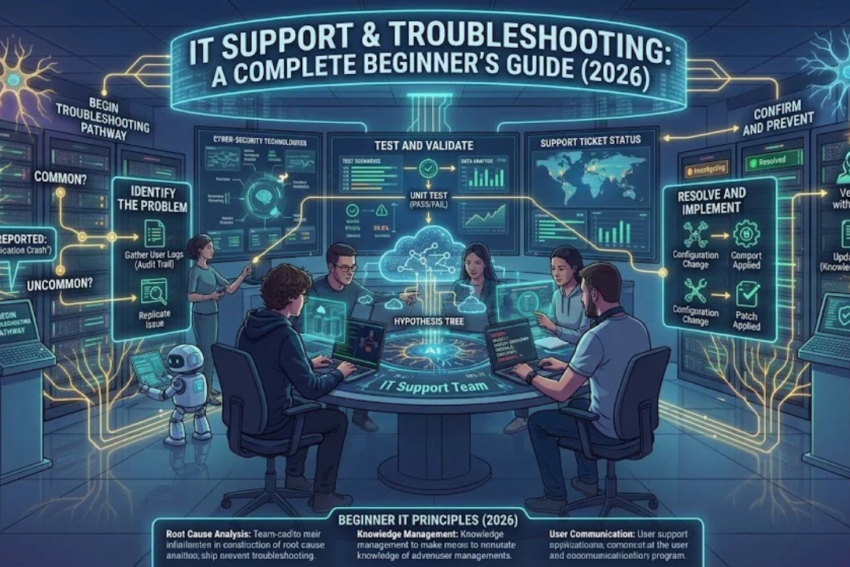
Meta Description: Learn what IT support is, common computer problems, troubleshooting methods, essential IT support skills, tools, and career opportunities for beginners in 2026.
URL Slug: it-support-and-troubleshooting-guide
Primary Keyword: IT Support and Troubleshooting
Secondary Keywords: IT support for beginners, computer troubleshooting, IT help desk, technical support, computer repair, network troubleshooting, IT support skills
Introduction
Information Technology (IT) plays an essential role in modern businesses, educational institutions, healthcare facilities, and everyday life. Computers, networks, software applications, and online services help people complete tasks efficiently. However, when these systems stop working correctly, they can interrupt productivity and create serious problems.
This is where IT support and troubleshooting become important.
IT support professionals help users solve technical problems, maintain computer systems, configure software, manage accounts, and keep technology operating reliably. Troubleshooting is the process of identifying the cause of a problem and applying an appropriate solution.
For example, if a computer cannot connect to Wi-Fi, an IT support technician investigates possible causes such as wireless settings, router problems, incorrect network configurations, or a service outage.
You do not need to be an expert programmer to begin learning IT support. By understanding basic computer hardware, operating systems, networking, and troubleshooting methods, you can develop practical skills that are useful in many workplaces.
In this guide, we will explain IT support, common technical problems, step-by-step troubleshooting methods, essential tools, cybersecurity considerations, and career opportunities for beginners.
What Is IT Support?
IT support is the service of helping individuals and organizations use technology effectively. It includes resolving technical issues, maintaining equipment, installing software, managing access, and assisting users with digital systems.
IT support may be provided by an internal company team, an external service provider, a help desk, or a technician working directly with users.
Common IT support responsibilities include:
- Installing and configuring computers and software.
- Troubleshooting hardware and software problems.
- Resolving network and internet connectivity issues.
- Creating and managing user accounts.
- Helping users recover access to their accounts.
- Installing approved updates and security patches.
- Monitoring system performance.
- Maintaining technical documentation.
- Escalating complex issues to specialized teams.
- Supporting backups and recovery procedures.
The exact responsibilities depend on the organization, the technician’s experience, and the level of support being provided.
What Is Computer Troubleshooting?
Computer troubleshooting is a systematic process used to identify, diagnose, and resolve technical problems.
Instead of randomly changing settings or replacing equipment, a technician investigates possible causes, tests solutions, and checks whether the issue has been resolved.
For example, if a laptop does not start, the cause could be a discharged battery, a faulty charger, a damaged power connector, or an internal hardware failure.
A good technician does not immediately assume that the computer itself is defective. They begin with simple, low-risk checks and progress to more advanced tests as necessary.
Effective troubleshooting aims to:
- Identify the symptoms.
- Understand when and how the problem occurs.
- Determine the most likely causes.
- Test possible explanations.
- Apply a suitable fix.
- Confirm that the system works correctly.
- Document the solution.
This approach reduces wasted time and helps prevent additional problems.
Different Levels of IT Support
IT support is commonly divided into levels based on the complexity of the issues handled.
Level 1: First-Line Support
Level 1 support, often called Tier 1 support, handles common problems and initial diagnosis.
Typical responsibilities include:
- Password and account access assistance.
- Basic software troubleshooting.
- Printer and peripheral setup.
- Common Wi-Fi connectivity problems.
- Basic operating system checks.
- Logging and categorizing support tickets.
- Following documented troubleshooting procedures.
Level 1 is often a suitable starting point for people entering the IT industry.
Level 2: Technical Support
Level 2 support handles more complex issues that cannot be resolved through basic troubleshooting.
Responsibilities may include:
- Advanced operating system diagnosis.
- Software installation and configuration.
- Network connectivity analysis.
- Hardware diagnostics.
- Application error investigation.
- Reviewing system logs.
- Supporting user accounts and permissions.
Level 2 technicians usually have more specialized technical knowledge and experience.
Level 3: Advanced Support
Level 3 support deals with difficult technical issues requiring specialist expertise.
This level may include system administrators, network engineers, database specialists, cybersecurity professionals, and software engineers.
Their work can involve analyzing complex failures, fixing infrastructure problems, modifying system configurations, and working with software vendors.
Specialized Support Teams
Some organizations also have dedicated teams for cloud infrastructure, cybersecurity, enterprise applications, databases, and other specialized systems.
The level structure varies between employers, but the general principle is to resolve routine issues efficiently and send more complex problems to the appropriate specialists.
Common IT Problems and How to Troubleshoot Them
Understanding common technical problems is one of the best ways to develop practical IT support skills.
1. Computer Will Not Turn On
A computer that does not start may have a power-related issue, a hardware fault, or an internal system problem.
Possible causes:
- Discharged laptop battery.
- Faulty power adapter or power cable.
- Loose power connection.
- Defective power outlet.
- Hardware failure.
- Internal power supply problem in a desktop computer.
Troubleshooting steps:
- Check whether the power outlet is working using an appropriate, safe method.
- Confirm that the power cable and adapter are securely connected.
- Check the laptop’s charging indicator, if available.
- Disconnect unnecessary external devices and try starting the computer again.
- If appropriate, follow the manufacturer’s instructions for a power reset.
- Look for indicator lights, fan activity, beeps, or error messages.
If the computer shows no signs of power after these checks, further hardware diagnosis may be necessary.
Do not open a power supply or attempt electrical repairs unless you are appropriately trained. Internal components can present electrical and equipment-damage risks.
2. Computer Is Running Slowly
Slow performance can result from several factors, including excessive background activity, limited memory, insufficient storage space, malware, overheating, or hardware limitations.
Troubleshooting steps:
- Restart the computer if it has been running continuously.
- Check Task Manager on Windows or the relevant system monitor on another operating system.
- Identify applications using unusually high CPU, memory, or disk resources.
- Close unnecessary applications.
- Check available storage space.
- Review startup applications and disable unnecessary ones.
- Install appropriate operating system and application updates.
- Run a security scan using an approved security tool.
- Check for overheating symptoms, such as frequent thermal shutdowns or unusually loud fans.
Avoid deleting unfamiliar system files or disabling essential services in an attempt to improve performance.
If the computer remains slow, investigate whether a hardware upgrade or more detailed diagnostic test is appropriate.
3. Internet Is Not Working
Internet connectivity problems may originate from the device, router, wireless access point, internet service provider, or wider network.
Troubleshooting steps:
- Check whether Wi-Fi is enabled or the Ethernet cable is connected.
- Confirm that the device is connected to the correct network.
- Test another website or online service.
- Check whether other devices can access the internet.
- If only one device is affected, investigate its network configuration.
- If several devices are affected, inspect the router or contact the network administrator.
- Restart network equipment only when appropriate and when doing so will not disrupt other users.
- Check whether the internet service provider has reported an outage.
If the device connects to Wi-Fi but cannot access websites, the issue may involve DNS, IP configuration, routing, or the internet connection itself.
4. Wi-Fi Keeps Disconnecting
Unstable Wi-Fi can be caused by weak signal strength, interference, outdated drivers, router issues, or network congestion.
Possible solutions include:
- Moving closer to the wireless access point.
- Checking whether other devices experience the same issue.
- Updating the wireless adapter driver through an approved source.
- Forgetting and reconnecting to the network when appropriate.
- Checking router placement and wireless settings.
- Using Ethernet for testing where practical.
- Asking the network administrator to inspect access point performance.
Avoid changing advanced router settings without authorization, particularly on business networks.
5. Printer Is Not Printing
Printer issues may result from connection problems, incorrect printer selection, paper jams, empty supplies, or a stuck print queue.
Troubleshooting steps:
- Check whether the printer is powered on.
- Confirm that paper and the required supplies are available.
- Review the printer’s display or indicator lights for errors.
- Verify the connection through USB or the network.
- Confirm that the correct printer is selected.
- Inspect the print queue for paused or failed jobs.
- Restart the printer if appropriate.
- Check the printer driver and operating system settings.
If several users cannot print to the same network printer, investigate the shared printer, print server, or network connection rather than troubleshooting every computer independently.
6. Applications Keep Crashing
Applications may crash because of software defects, corrupted settings, insufficient resources, incompatible versions, or damaged files.
Try the following steps:
- Record the error message.
- Close and reopen the application.
- Restart the computer if necessary.
- Check whether updates are available.
- Confirm that the system meets the application’s requirements.
- Test whether the problem occurs with a particular file or action.
- Review relevant system or application logs.
- Use the application’s repair function if available.
Reinstalling software may help in some cases, but first check whether the application contains important local data that needs to be preserved.
7. Computer Has No Sound
Sound problems can be caused by incorrect output settings, muted volume, disconnected devices, driver issues, or faulty hardware.
Check the volume level, selected audio output device, physical connections, and application-specific audio settings.
If the problem continues, inspect the audio driver and test another compatible audio device if available.
8. Keyboard or Mouse Is Not Working
For wired devices, check the cable and try another compatible USB port. For wireless devices, check the battery, receiver, Bluetooth connection, and pairing status.
If the issue affects multiple devices, investigate the computer’s ports, drivers, or operating system rather than assuming that every peripheral is defective.
A Step-by-Step IT Troubleshooting Method
A consistent troubleshooting method is useful for both beginners and experienced professionals.
<CodeBlock language=”mermaid” editable={false}>flowchart TD
A[“Identify the problem”] –> B[“Collect symptoms and error messages”]
B –> C[“Check recent changes”]
C –> D[“Identify likely causes”]
D –> E[“Test one possible cause”]
E –> F{“Did the test resolve the issue?”}
F –>|Yes| G[“Verify normal operation”]
G –> H[“Document the solution”]
F –>|No| I[“Try another safe test”]
I –> D
I –> J[“Escalate if needed”]
</CodeBlock>
Step 1: Identify the Problem
Ask the user what happened, when it started, and which applications or devices are affected.
Useful questions include:
- What were you trying to do?
- What happened instead?
- Is there an error message?
- Did the problem begin after an update or configuration change?
- Does the issue affect one user or multiple users?
Clear information prevents unnecessary troubleshooting.
Step 2: Collect Evidence
Record error messages, timestamps, screenshots where permitted, system symptoms, and relevant logs.
For security incidents or sensitive systems, follow the organization’s procedures for evidence collection and information handling.
Step 3: Check Recent Changes
Many technical problems begin after a change, such as a software update, new application installation, password change, or network configuration modification.
Identifying recent changes can help narrow the list of possible causes.
Step 4: Form a Hypothesis
Based on the evidence, identify the most likely explanation.
For example, if one laptop cannot connect to Wi-Fi but other devices can, the issue may be related to that laptop’s settings or wireless adapter.
Step 5: Test One Change at a Time
Begin with simple, low-risk tests. Change one variable at a time when possible, and record the result.
This makes it easier to understand which action helped or failed.
Step 6: Apply the Fix
Once a likely cause has been identified, apply an appropriate solution within your authorization and technical competence.
For business systems, use change-management procedures where required.
Step 7: Verify the Result
Confirm that the original problem has been resolved and check whether the solution caused any new issues.
For example, after restoring network connectivity, test the applications that the user actually needs.
Step 8: Document the Resolution
Record the problem, diagnosis, actions taken, final result, and any follow-up work.
Good documentation helps other technicians solve similar issues more quickly.
Essential IT Support Tools
IT support professionals use a range of tools to diagnose problems, maintain devices, and communicate with users.
1. Task Manager and System Monitors
Windows Task Manager helps users inspect running processes, CPU usage, memory consumption, disk activity, and startup applications.
Other operating systems provide comparable system monitoring tools.
2. Command-Line Tools
Command-line utilities can help technicians investigate network connectivity and system configuration.
Common Windows commands include:
ipconfig— displays IP configuration information.ping— tests connectivity to a destination using ICMP where supported.tracert— helps examine the route toward a destination.nslookup— queries DNS information.systeminfo— displays selected Windows system information.
For example, ipconfig /all displays detailed network adapter configuration on Windows.
These commands provide useful evidence, but their results require interpretation. A failed ping does not always mean that a device is offline because some systems block ICMP traffic.
3. Remote Support Tools
Remote support software allows authorized technicians to view or control a computer from another location.
These tools can save time when supporting remote employees, but they should be approved by the organization and configured with suitable authentication and access controls.
4. Ticketing Systems
Ticketing systems record support requests, track progress, assign responsibility, and maintain a history of technical problems.
A good ticket should explain the symptoms, affected user or service, troubleshooting performed, and current status without exposing unnecessary sensitive information.
5. Diagnostic and Monitoring Tools
Hardware diagnostic tools can help test memory, storage, temperatures, and other components.
Network monitoring systems can provide information about connectivity, bandwidth, latency, and equipment status.
Use reputable tools from trusted sources and follow organizational policies before installing software.
6. Knowledge Bases and Documentation
Knowledge bases contain troubleshooting instructions, configuration guides, known issues, and solutions to recurring problems.
Learning to search technical documentation effectively is an important skill for every IT support professional.
Cybersecurity Responsibilities in IT Support
IT support technicians often have access to user devices, accounts, and business systems. Their actions can directly affect organizational security.
Protect User Accounts
Follow approved identity verification procedures before resetting passwords or changing account access.
Never ask users to disclose their passwords, and never share account credentials through insecure channels.
Use Least Privilege
Give users and technicians only the permissions required for their work.
Avoid using administrator privileges for routine tasks unless they are necessary and authorized.
Keep Systems Updated
Apply approved operating system, application, and firmware updates according to the organization’s maintenance procedures.
Security patches help address known vulnerabilities, although updates should be tested appropriately in environments where failures could cause major disruption.
Recognize Phishing
Be alert to suspicious emails, unexpected attachments, unusual login prompts, and requests for confidential information.
Report suspected phishing according to the organization’s security procedures.
Protect Sensitive Information
Avoid copying sensitive files to personal devices or unapproved cloud services.
Healthcare, financial, and other regulated environments may have additional requirements for handling confidential records.
Escalate Security Incidents
If you suspect ransomware, unauthorized access, or a serious data breach, follow the organization’s incident response process.
Do not casually delete evidence, reset affected systems, or attempt recovery actions that might interfere with an investigation.
Essential Skills for IT Support Beginners
A successful IT support professional needs both technical knowledge and strong communication skills.
Technical Skills
Computer hardware: Understand processors, RAM, storage devices, power supplies, and common peripherals.
Operating systems: Learn basic Windows and Linux administration, file permissions, user accounts, and software installation.
Networking: Understand IP addresses, DNS, DHCP, routers, switches, Wi-Fi, and basic connectivity testing.
Software troubleshooting: Learn how to interpret error messages, review logs, and diagnose application issues.
Cybersecurity fundamentals: Understand passwords, multifactor authentication, permissions, updates, phishing, and backups.
Documentation: Learn to record problems and solutions accurately.
Communication Skills
IT support involves working with people who may not understand technical terminology.
Useful communication habits include:
- Listening carefully before suggesting solutions.
- Explaining technical concepts in simple language.
- Asking clear diagnostic questions.
- Giving realistic expectations about resolution time.
- Remaining calm when users are frustrated.
- Recording the results of troubleshooting accurately.
A technician who communicates clearly can often resolve problems more efficiently than someone who relies only on technical knowledge.
How to Start an IT Support Career in 2026
IT support can be a practical entry point into the technology industry.
You can begin with a structured learning plan and build experience through home projects, internships, training programs, and entry-level roles.
Step 1: Learn Computer Fundamentals
Understand how computers work, how operating systems manage resources, and how software interacts with hardware.
Practice installing applications, managing files, and diagnosing common problems on a device you are authorized to use.
Step 2: Study Networking Basics
Learn IP addressing, DNS, DHCP, routers, switches, Wi-Fi, and common connectivity issues.
You do not need to become a network engineer immediately, but networking fundamentals are essential for technical support.
Step 3: Practice Troubleshooting
Create a small practice environment using a personal computer or virtual machine.
Learn to investigate common issues such as application errors, storage limitations, and network configuration problems.
Do not deliberately damage important systems or test changes on workplace devices without authorization.
Step 4: Learn a Support Workflow
Practice creating sample support tickets, documenting symptoms, recording tests, and explaining the final solution.
This helps you develop the habits expected in professional IT environments.
Step 5: Build a Small Portfolio
Document practical projects such as:
- Installing and configuring a virtual machine.
- Setting up a home network.
- Creating a basic troubleshooting guide.
- Using command-line tools to investigate connectivity.
- Preparing a sample IT support ticket log.
A portfolio demonstrates your ability to apply knowledge, even when you have limited professional experience.
Step 6: Explore Certifications
Entry-level certifications can provide structured learning and help demonstrate knowledge.
Depending on your goals, you might explore CompTIA A+, introductory networking certifications, or relevant Microsoft learning paths.
Certification requirements, exam availability, and fees can change, so check the official provider websites before making a decision.
Step 7: Apply for Entry-Level Roles
Search for positions such as:
- IT Support Technician
- Help Desk Technician
- Desktop Support Technician
- Technical Support Representative
- Junior Systems Support Technician
- IT Service Desk Analyst
Review each job description carefully because responsibilities and experience requirements vary by employer.
Common IT Support Mistakes to Avoid
Beginners can save time and reduce risk by avoiding several common mistakes.
Changing too many settings at once: This makes it difficult to identify the real cause of a problem.
Ignoring error messages: Error messages and logs often provide useful diagnostic information.
Skipping backups: Risky repair operations can result in data loss if important files are not protected.
Installing unapproved software: Unknown applications can introduce security risks or violate workplace policies.
Assuming every problem is hardware-related: Software, configuration, and network issues can produce similar symptoms.
Using administrator access unnecessarily: Excessive privileges increase the impact of mistakes and security incidents.
Failing to document fixes: Without records, the same problem may need to be diagnosed from the beginning.
Closing a ticket too early: Always verify that the user’s original problem has been resolved.
Frequently Asked Questions (FAQs)
What is IT support in simple words?
IT support helps people use computers, software, networks, and digital services by resolving technical problems and maintaining systems.
What is troubleshooting in IT?
Troubleshooting is the systematic process of identifying a technical problem, testing possible causes, applying a solution, and verifying that the system works correctly.
Is IT support a good career for beginners?
IT support can be a good starting point for people interested in technology and problem-solving. Entry-level opportunities depend on local demand, practical skills, communication ability, and employer requirements.
Do I need programming skills for IT support?
Most entry-level IT support roles do not require advanced programming. However, basic scripting can help automate repetitive tasks and improve troubleshooting.
How long does it take to learn IT support?
The timeline depends on your background, study time, and learning goals. With regular practice, beginners can develop basic troubleshooting skills over several weeks or months, while professional competence requires continued learning and experience.
What is the difference between IT support and IT troubleshooting?
IT support is the broader service of helping users and maintaining technology systems. Troubleshooting is one of the core activities performed within IT support.
Which tools should an IT support beginner learn first?
Start with the operating system’s built-in settings and monitoring tools, basic command-line utilities, networking diagnostics, and a structured ticketing or documentation workflow.
Can I work in IT support without a degree?
Some employers accept practical skills, relevant certifications, and experience instead of a specific degree. Others require formal qualifications, so review the requirements for the positions you want.
Conclusion
IT support and troubleshooting are essential to keeping computers, networks, applications, and digital services operating reliably. By learning how to identify symptoms, collect evidence, test possible causes, and verify solutions, beginners can develop valuable technical skills.
Successful IT support also requires cybersecurity awareness, clear communication, accurate documentation, and the ability to recognize when a problem needs specialist attention.
Start with computer fundamentals, develop networking knowledge, practice troubleshooting in a safe environment, and document what you learn. Over time, these skills can help you prepare for an entry-level support role or move toward specialized areas such as networking, cloud computing, systems administration, or cybersecurity.
Explore more technology guides on Jobztit to learn about Information Technology, cloud computing, artificial intelligence, cybersecurity, and other essential IT skills.